
"The best way to predict the future is to invent it." –Alan Kay
The web was built for humans
For as long as we've built websites, we built them for people. We design a button so a human can see it and click it. We design a form so a human can read the labels and type into the fields. Everything about a web page — the layout, the colors, the spacing — exists to help a person with eyes and a mouse get something done.
That assumption held for decades. It's quietly breaking now.
Enter the AI agent
There's a new kind of user showing up on the web: the AI agent. When I say "agent," I don't mean a chatbot that only talks. I mean an AI — like Gemini, Claude, or ChatGPT — that can actually take actions for you. Instead of telling you "here's how to book a flight," an agent goes and books it.
But here's the catch. The agent doesn't have eyes and a mouse. It has to somehow figure out your human-shaped website using software. And that, it turns out, is really hard.
WebMCP is a new browser standard that fixes this. In one sentence: it lets your website hand the agent a clean menu of things it can do, instead of forcing the agent to guess.
This article walks through what WebMCP is, the exact problem it solves, how it works, a complete example you can run today, and an honest look at what doesn't work yet (spoiler: most agents, including Claude, can't use it natively right now). You only need a bit of HTML and JavaScript to follow along.
The problem WebMCP solves
How agents use websites today (the hard way)
Imagine asking a friend to use a website while wearing a blurry pair of glasses. That's roughly what an AI agent does today. It has two options, and both are clumsy:
- Looking (screenshots). The agent takes a picture of the page, tries to read it, and guesses where to click and type. The technical word for this is actuation — the agent simulating clicks and keystrokes like a human would.
- Reading the code (DOM scraping). The agent pulls the raw HTML and tries to work out which
<button>does what and which<input>needs which value.
Both share the same weakness: the agent is guessing. Real websites are messy — buttons move during a redesign, dates use custom pickers, content loads after the page does. So the agent ends up in a loop like this:
take a screenshot → find the search box → type → find the button → click → wait → take another screenshot to check it worked → repeat
This is slow (every step is a round trip), expensive (sending screenshots and giant HTML to an AI model burns a huge number of tokens, and tokens cost money), and unreliable (one small UI change and it all falls apart).
I work on data-heavy dashboards, and this is exactly where the "guessing" approach hurts most. A dashboard is full of custom widgets, filters, and dynamic state — the worst possible thing for an agent that's trying to read pixels.
Why the obvious fixes don't work
The natural thought is: "I'll just build an API or an MCP server for agents." (MCP, the Model Context Protocol, is a popular way to expose tools to AI — more on it shortly.) But that runs into two walls:
- Every agent on earth would need to know your specific server exists and be configured for it. With millions of websites, that doesn't scale.
- You'd be building and hosting a whole separate backend just to serve agents.
So a normal website is stuck between "guessing agents" and "infrastructure nobody connects to." WebMCP is the third option.
What WebMCP actually is
Think of a restaurant. Without a menu, the waiter has to guess what you want by watching you. With a menu, you just point and say "I'll have item #3." WebMCP is the menu your website gives to AI agents.
Instead of letting the agent squint at your page, your website declares a list of actions it can perform — called tools — and exactly how to use each one. The agent reads that list and calls a tool directly, like calling a function.
A tool has three parts:
- A name — like
add_to_cart. - A description — plain English: "Add a product to the shopping cart."
- An input schema — what it needs: a
productId(string) and aquantity(number).
The mental model that made it click for me: with WebMCP, your web page acts like a tiny server living inside the browser tab. The agent calls your tools, and your own JavaScript runs them. No separate backend, no guessing.
WebMCP was announced on February 10, 2026, and it's being built jointly by Google (Chrome) and Microsoft (Edge) through the W3C standards body. So it's an open web standard, not one company's gadget.
A quick note on the name: WebMCP is inspired by MCP and shares the same idea — declare tools, let agents call them — but it runs client-side in the browser, while classic MCP runs on a server. They're cousins, not the same thing.
Why it's better (the three wins)
1. Reliability. The agent calls add_to_cart({ productId: "X", quantity: 1 }) against a clear schema. No reading pixels, no guessing which button is which. Redesign your UI and the tool still works, because it isn't tied to how things look.
2. Speed and cost. A WebMCP call is one clean round trip. Compare that to the screenshot → click → wait loop, which can take 30–60 seconds and a mountain of tokens. One structured call replaces dozens of fumbling steps.
3. Control. You decide which actions to expose. The agent can only do what's on the menu — nothing more. And because tools run your real code, they go through your real validation. Sensitive actions (like "place order") can ask the human to confirm first.
How it works
WebMCP gives you two APIs. Pick based on one question: is this action already an HTML form, or is it custom logic?
Declarative API — annotate an existing form
If your action is a plain <form>, you don't write any JavaScript. You add a few HTML attributes, and WebMCP builds the tool from your form fields automatically.
<form
  toolname="book_table"
  tooldescription="Reserve a table at the restaurant."
  toolautosubmit
>
  <label>Party size
    <input name="party_size" type="number"
      toolparamdescription="Number of guests" />
  </label>

  <label>Date
    <input name="date" type="date"
      toolparamdescription="Reservation date (YYYY-MM-DD)" />
  </label>

  <button type="submit">Book</button>
</form>
That's it. A WebMCP-aware agent now sees a book_table tool, knows it needs party_size and date, fills the form, and submits. The schema was generated from your fields.
Use declarative when the action is already (or naturally) a form — contact forms, search filters, reservations, sign-ups.
Imperative API — register a tool in JavaScript
For anything dynamic — custom logic, reading app state, calling an API, updating the UI without a form — you register a tool in JS and define everything yourself.
// The API moved location between Chrome versions, so check both:
// Chrome 149 and below: navigator.modelContext
// Chrome 150+:          document.modelContext (navigator version deprecated)
const mc = document.modelContext || navigator.modelContext;

mc.registerTool({
  name: "add_todo",
  description: "Add a new task to the to-do list.",
  inputSchema: {
    type: "object",
    properties: { text: { type: "string" } },
    required: ["text"],
  },
  execute: async ({ text }) => {
    addTaskToList(text); // your real app logic
    return `Added task: ${text}`;
  },
});
Here you control the name, the schema, and the logic. The action doesn't have to be a form at all.
A rule of thumb I keep coming back to: declarative is for forms, imperative is for functions. "Simple vs complex" is the wrong split — a simple non-form action is still imperative.
The coolest part: contextual tools
This is the feature that makes WebMCP feel modern. Tools can be registered and unregistered as the user moves around your app. A checkout tool only exists once there are items in the cart. A set_filter tool only appears on the search-results page.
So the agent always sees a short, relevant menu for where it currently is — not a giant dump of every action your app can ever do. In React, you register a tool when a component mounts and remove it on unmount, using an AbortController (the standard way to cancel things in JS):
const controller = new AbortController();
mc.registerTool(myTool, { signal: controller.signal });

// when the component goes away:
controller.abort(); // tool is removed automatically
This "load the right tools for where the agent is" pattern is, honestly, the part I find most exciting. It's a cleaner answer to tool overload than anything I've seen so far.
A full example you can run today
Here's a complete single file. Save it as webmcp-demo.html, and open it in Chrome or Edge with WebMCP enabled (instructions below). It's a tiny to-do app where the same function powers both a human click and an AI tool call.
<!doctype html>
<html lang="en">
<head>
  <meta charset="utf-8" />
  <title>WebMCP Demo</title>
</head>
<body>
  <h1>To-Do (WebMCP demo)</h1>
  <p id="status">Checking for WebMCP…</p>

  <input id="task" type="text" placeholder="New task" />
  <button id="add">Add</button>
  <ul id="list"></ul>

  <script>
    const todos = [];

    // --- ONE source of truth: the real logic ---
    function addTodo(text) {
      if (!text.trim()) return "Nothing to add.";
      todos.push(text.trim());
      render();
      return `Added: ${text.trim()}`;
    }

    function render() {
      const ul = document.getElementById("list");
      ul.innerHTML = "";
      todos.forEach((t) => {
        const li = document.createElement("li");
        li.textContent = t;
        ul.appendChild(li);
      });
    }

    // --- Human path: the button calls the same function ---
    document.getElementById("add").onclick = () => {
      const input = document.getElementById("task");
      addTodo(input.value);
      input.value = "";
    };

    // --- Agent path: a WebMCP tool calls the same function ---
    const mc = document.modelContext || navigator.modelContext;

    if (mc) {
      mc.registerTool({
        name: "add_todo",
        description: "Add a new task to the to-do list.",
        inputSchema: {
          type: "object",
          properties: { text: { type: "string" } },
          required: ["text"],
        },
        execute: async ({ text }) => addTodo(text),
      });
      document.getElementById("status").textContent =
        "WebMCP active — 1 tool registered.";
    } else {
      document.getElementById("status").textContent =
        "WebMCP not detected. Enable the Chrome flag (see below).";
    }
  </script>
</body>
</html>
Notice the design: addTodo() is the only place the logic lives. The human button calls it, and the agent's tool calls it. Same code, two doors. That's the heart of WebMCP — your site keeps working for people, and gains an agent-readable layer on top.
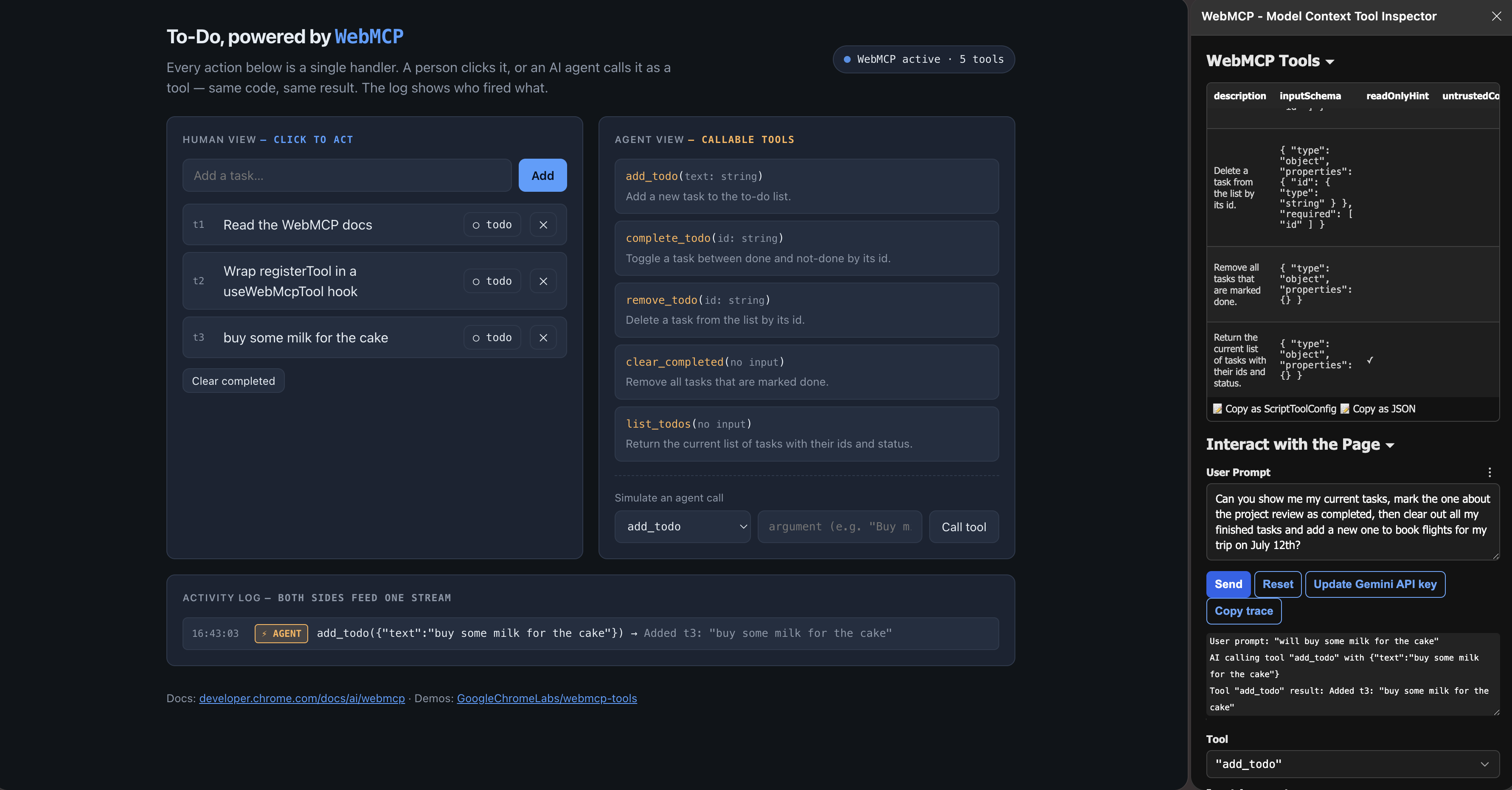
Prefer to just play with it? Here's a fuller version you can open in a new tab. Add a task with the button on the left, then fire the same add_todo tool from the Simulate an agent call panel on the right — and watch both land in the shared activity log, tagged HUMAN or AGENT:
👉 Open the live WebMCP to-do demo →
The demo runs even without the browser flag — the human buttons and the simulate panel work everywhere, so you can feel the "one handler, two callers" idea right now. Flip the flag on in Chrome (
chrome://flags/#enable-webmcp-testing) or Edge (edge://flags/#enable-webmcp-testing) and the status pill turns to "WebMCP active," registering the tools for a real agent (like the inspector) to call.
How to try and test it
WebMCP is still new, so you need to turn it on. The demo above is already hosted, so you don't have to save any files or run a local server — just point a Chromium browser at it.
1. Enable the flag. In Chrome, go to chrome://flags/#enable-webmcp-testing, set it to Enabled, and relaunch. In Edge it's the exact same switch at edge://flags/#enable-webmcp-testing — Edge shares Chrome's engine, so the flag and the API behave identically. (For a deployed site you'd join the Chrome 149 origin trial instead of using the flag.)
2. Open the hosted demo. Just open the live demo in that browser. It's served over a real https:// origin, which is all WebMCP needs — no file://, no npx serve. When the flag is on, the status pill flips to "WebMCP active."
3. Install the inspector extension. The WebMCP – Model Context Tool Inspector lets you see the registered tools, call them by hand, check your schemas, and talk to an agent in plain English to watch it pick a tool.
A gotcha that cost me a few minutes: if the inspector says "Could not establish connection," just reload the demo tab after enabling the extension. Browser extensions only inject into pages that load after they're turned on.
Once it's connected, you can talk to the agent in plain English and watch it pick your tool. Here's the inspector calling add_todo and the result landing in the page's activity log:
4. Check from the console. Open DevTools and run:
const mc = document.modelContext || navigator.modelContext;
await mc.getTools(); // is my tool registered? right schema?
For real projects, Chrome also ships an evals workflow to test whether agents reliably pick the right tool — important, because while execution is exact, which tool the AI chooses is still a probabilistic guess.
The honest catch: not every agent supports it yet
This is the part most hype articles skip. Building the tools (the website side) is one half. The other half is the agent that calls them — and there, support is still thin.
As of mid-2026:
- Gemini in Chrome is the main agent that calls WebMCP tools natively today.
- Claude, ChatGPT, and Copilot do not call WebMCP tools natively yet. The official "Claude in Chrome" extension, for example, still drives pages the old way (screenshots and clicks) and has no built-in way to discover your tools. There's an open feature request, but it hasn't shipped.
- More agents are expected to add support as the standard matures.
You can still connect Claude to WebMCP tools today using a bridge (a small helper that forwards your page's tools to Claude Code), but that's an opt-in developer setup, not something a normal user has.
Browser support, briefly: Chrome has it behind a flag / origin trial, with native "on by default" expected in the second half of 2026. Edge co-authored the spec and, because it shares Chrome's Chromium engine, already exposes the very same flag — edge://flags/#enable-webmcp-testing turns it on and the API works identically today; what's still unconfirmed is the native, on-by-default rollout, expected to follow Chrome's. Firefox and Safari have no timeline. A polyfill (@mcp-b/global) lets you experiment on any browser today.
My honest take: treat WebMCP as early but promising. It's cheap to add and backed by serious players, but the agents that consume it are still catching up. That gap is the whole reason to start with internal tools you control, where you can bridge an agent yourself instead of waiting for the ecosystem.
When should you use it?
Don't add it everywhere. Add it to actions with this shape:
- Repeated often — the savings add up.
- Multi-step or buried in menus — the agent collapses the navigation.
- Structured input (IDs, dates, numbers, choices) — maps cleanly to a schema.
- Behind a login — the tool inherits the session.
- Fragile to scrape — custom widgets that break DOM actuation.
Great real use cases:
- Filtering big lists — apartments, hotels, products. "Show me 3-bedroom rentals under $4500 near a train station" becomes one
search()+apply_filters()call instead of ten dropdowns. - Filling forms — timesheets, applications, support tickets. The declarative API shines here.
- Repeat purchases — "reorder the cheese sticks I bought last month."
- Dashboards and internal tools — the sweet spot for companies, and the best place to adopt now, because you control both the website and the agent.
When to skip it: discovery tasks where a human wants to browse and hand-pick, plain static sites, or public features needing broad agent support that doesn't exist yet.
The analogy I like: it's responsive design in 2012. You didn't rebuild your site for phones — you added a few breakpoints, and the same HTML served both. WebMCP is the same kind of annotation layer, but for agents. Low cost, near-zero downside, and the sites that do it early are ready when agents go mainstream.
Conclusion
WebMCP turns your website from something an AI agent has to squint at into something it can call directly. You declare your actions as tools — by annotating a form (declarative) or registering a function (imperative) — and agents use them reliably, quickly, and only as far as you allow.
Two things are worth keeping in your head: execution is exact, but the agent still chooses which tool to call, and the big consumer agents like Claude and ChatGPT haven't shipped native support yet. But the direction is clear, the cost of adding it is small, and the core idea — contextual, schema-guaranteed tools loaded for exactly where the agent is — is a genuinely good glimpse of where the web is heading.
My advice: start small. Pick one repetitive, form-shaped action on a project you own, add a tool, and watch an agent use it in the inspector. That single loop will teach you more than any article.
Resources
- Video walkthrough: What WebMCP is and how to start using it
- Official Chrome docs: WebMCP — Chrome for Developers
- Inspector extension: WebMCP – Model Context Tool Inspector
Note: WebMCP is an early, fast-moving standard — APIs and browser support are changing quickly, so check the official Chrome docs before you ship anything important. This article was written by me and refined with the help of Claude. Cheers! ✌🏼